Protect your group's projects with a shared workspace
November 9, 2026Team members move on. The projects they were working on shouldn't disappear with them. A shared workspace gives Pro groups a shared space where projects are accessible to everyone on the group subscription, not just to whomever created them.
What is a shared workspace?
In the shared workspace, every member of your group subscription can find and work on projects together without needing to invite all members of the group individually.
Any member can create a project directly in the workspace, or move an existing project they own from their personal workspace. Once a project moves into the workspace, ownership transfers to the workspace management, so it stays accessible even if the original owner leaves.
Who can use the shared workspace?
The shared workspace is available on Pro group plans, but group admins have the option to disable it. Once it's on, all members of the subscription can add projects to the workspace. If you’d like to upgrade to Pro for this feature, get in touch with our friendly sales team.
Why teams use the shared workspace:
- Simplify teamwork and project hand off: Rather than needing to invite everyone on a team to a project individually, moving a project to the shared workspace means everyone on the team can automatically see it.
- Reduce admin work to protect your intellectual property and maintain continuity: If someone leaves the organization, projects in the workspace stay accessible under group management instead of leaving with the person who created them.
- Build a central place for core documents: Add documents that everyone should be able to access with ease to the workspace, including templates, standard operating procedures, and new joiner onboarding.
Things worth noting:
Everyone on the subscription sees everything in the workspace
If your subscription covers people across departments or research groups who don't actually collaborate, workspaces might not be the right fit for you.
How to turn workspaces on (or off)
The group admin can go to Subscription settings → Feature Controls and enable/disable the Shared Workspace feature. If it's disabled after projects have been added, those projects return to their original owner's individual project list, and affected project owners get a notification.
What does the workspace look like?
When the shared workspace is enabled, group members will see an option in the left menu for ‘Your group’. This is where all projects that are moved into or created in the shared workspace will live.
How do I use it?
How to move a project into the workspace
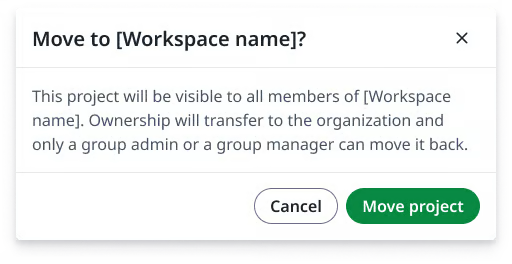
Once the group workspace is on, any member of the subscription can move a project into the shared workspace. Doing so transfers ownership of the project to the workspace managers. If the person who created a project leaves the organization, the project they created that is in the group workspace will stay accessible to the wider group. Group admins can invite additional collaborators, and control sharing permissions.
Go to your projects list, right click on the project you want to share. A dropdown menu will appear with the option to move the project into the shared workspace.
How is this different from Managed Users?
Managed Users and a shared workspace can work in tandem or independently, and serve different purposes. Managed Users is owned by the group admin, who controls user accounts and ownership of projects as a whole; Shared workspaces makes it the decision of the project owner to increase the visibility of and transfer specific projects.
- Managed Users allows the group admin to govern a group member’s Overleaf account: whether they can delete it, change their email, join another subscription, or use AI features. Continuity requires action by the group admin. The admin deletes the user's managed account and manually reassigns ownership of all of their projects. Nothing is shared or visible to the whole team.
- Workspaces allows a member to voluntarily move an individual project into the shared workspace, and from that point on it’s visible to the whole group immediately. There's no invite/accept step per member and no admin decision about who to reassign to; the project is already shared and accessible before anyone leaves.
For more detail, see our help center documentation and FAQs on Workspaces.
Tell us what you think
As always, we want your feedback on this feature and how we can keep improving it. Get in touch to let us know what you think.